HAProxy is a very fast and reliable
solution for high availability, load balancing, It supports TCP and
HTTP-based applications. Now a days most of websites need 99.999% uptime
for there site, which are not possible with single server setup. Then
we need some high availability environment which can easily manage with
single server failure.

This article will help you to install HAProxy on CentOS, RHEL servers and will configure a Layer 4 Load Balancing (Transport Layer). Which will balance load and transfer requests to different-2 servers based on IP address and port numbers.
You also need to make few changes in configuration file as per your system configuration.

Haproxy stats configuration has been completed successfully.

This article will help you to install HAProxy on CentOS, RHEL servers and will configure a Layer 4 Load Balancing (Transport Layer). Which will balance load and transfer requests to different-2 servers based on IP address and port numbers.
1- Install HAProxy
HAProxy package is available under default yum repository for CentOS, Redhat systems. Use the following yum package manager command to install HAProxy on your system.# yum install haproxy
Step 2: Configure HAProxy
Update your HAProxy configuration file /etc/haproxy/haproxy.cfg as per your requirement, You may also use below given configuration file as an example of setup and modify it.# vim /etc/haproxy/haproxy.cfg
[ Update red mark values as per your network setup ]
global
        log 127.0.0.1   local0
        log 127.0.0.1   local1 debug
        maxconn   45000 # Total Max Connections.
        daemon
        nbproc      1 # Number of processing cores.
defaults
        timeout server 86400000
        timeout connect 86400000
        timeout client 86400000
        timeout queue   1000s

# [HTTP Site Configuration]
listen  http_web 192.168.10.10:80
        mode http
        balance roundrobin  # Load Balancing algorithm
        option httpchk
        option forwardfor
        server server1 192.168.10.100:80 weight 1 maxconn 512 check
        server server2 192.168.10.101:80 weight 1 maxconn 512 check

# [HTTPS Site Configuration]
listen  https_web 192.168.10.10:443
        mode tcp
        balance source# Load Balancing algorithm
        reqadd X-Forwarded-Proto:\ http
        server server1 192.168.10.100:443 weight 1 maxconn 512 check
        server server2 192.168.10.101:443 weight 1 maxconn 512 check
Change the ips in configuration file as per your network setup. In HTTP Site Configuration
section if any request on ip 192.168.10.10 on port 80, this will be
redirected to port 80 of 192.168.10.100 or 192.168.10.101 servers.
Similarly in HTTPS Site Configuration if any request on
ip 192.168.10.10 on port 443, this will be redirected to port 443 of
192.168.10.100 or 192.168.10.101 servers.You also need to make few changes in configuration file as per your system configuration.
- nbproc <value> # Number of processing cores in your system.
- mode <value> # ‘http’ for http site and ‘tcp’ for https site
- balance <value> # Type of load balancing like ‘source’, ’roundrobin’ etc.
Step 3: Start HAProxy Service
Start HAProxy service using following command, also configure it to auto start on system boot.# service haproxy start # chkconfig haproxy onAnd You have done it.
Enable HAProxy Stats
HAProxy Stats provides a lot of information about data transfer, total connection, server state etc. After installing HAProxy if you want to view HAProxy stats in your web browser, You can easily configure it by making few changes in your HAProxy configuration using following steps.Step 1: Enable Stats in HAProxy
To enable stats edit your haproxy configuration file and add below entry after defaults section.listen stats 192.168.10.10:1936
mode http
log global
maxconn 10
clitimeout 100s
srvtimeout 100s
contimeout 100s
timeout queue 100s
stats enable
stats hide-version
stats refresh 30s
stats show-node
stats auth admin:password
stats uri /haproxy?stats
Step 2: Access HAProxy Stats
Your can access HAProxy stats using following url. Change ip with your haproxy server ip address.URL: http://192.168.10.10:1936/haproxy?stats Login user: admin Login password: password
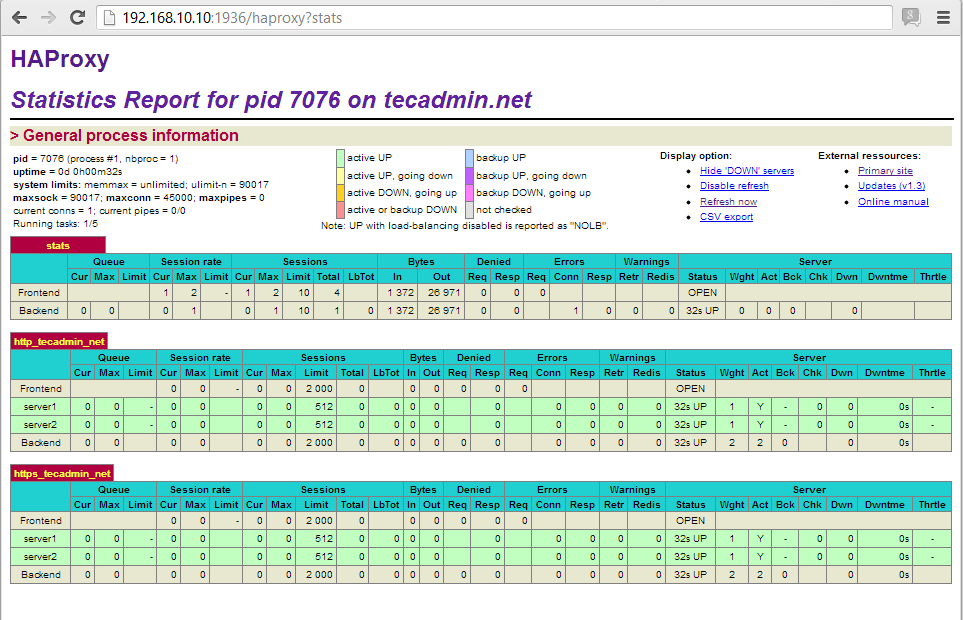
Step 3: Change Login Details
If you want to changed login details of HAProxy stats, edit your configuration and update “stats auth” value like belowstats auth username:passwordSave configuration file and restart HAProxy to update service.
Step 4: Change HAProxy Stats URL
To change url of haproxy stats edit configuration file and update following value.stats uri /ha-stats or stats uri /statsSave configuration file and restart HAProxy to update service. Now you can access url like http://192.168.10.10:1936/ha-stats or http://192.168.10.10:1936/stats.
Haproxy stats configuration has been completed successfully.


No comments:
Post a Comment